
The Decision Maker

Turn your messy thoughts into clear decisions and next steps.
It gives you a simple way to think better, write sharper, and move faster.
Instructions

Copy/Paste the prompt below into your AI platform of choice (ChatGPT, Claude, Gemini, etc).
Run it.
Get clarity.
Bonus: Want to automate it? (Check the bottom of this post)
BONUS
Bonus: Want to automate it?
Open Claude CoWork
Type:
Turn this prompt into a skill
Note: Now you can tell [Charles] (Your AI Coworker) use The Decision Maker skill.
Use Notion?
Here’s how to have [Charles] (Your AI Co-Worker) automatically put your Decision Memo in Notion.
Add Notion as a connector
Tell [Charles]:
update the skill by automatically placing your finished Decision Memos in Notion
Need help connecting Notion to Claude CoWork?
Open Claude CoWork
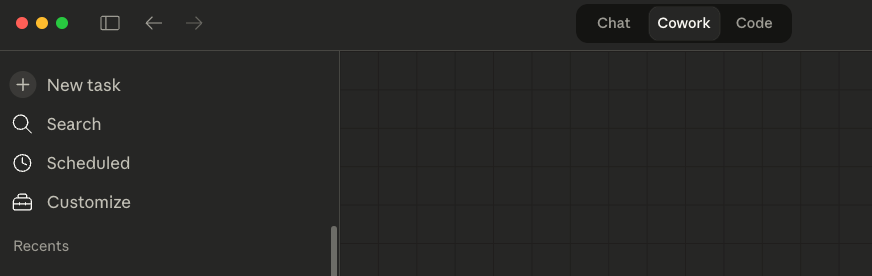
Open Claude Desktop and go to the Cowork tab
Click the Customize option on the sidebar
Look for Connectors in the settings menu
Find Notion in the list of available connectors
Click Connect or Enable
A Notion authorization window will pop up in your browser
Authorize using your normal method (email or Google, etc)
❝Notion connects to Claude through a special secure connection style, so you don’t need to log into any developer platform.
Once you’ve clicked “Authorize” on your window, you’re all set up!

Configure Your Permissions in the Notion Connector
Click the Customize option on the sidebar
Click the Connectors menu item
Click on your new Notion connector
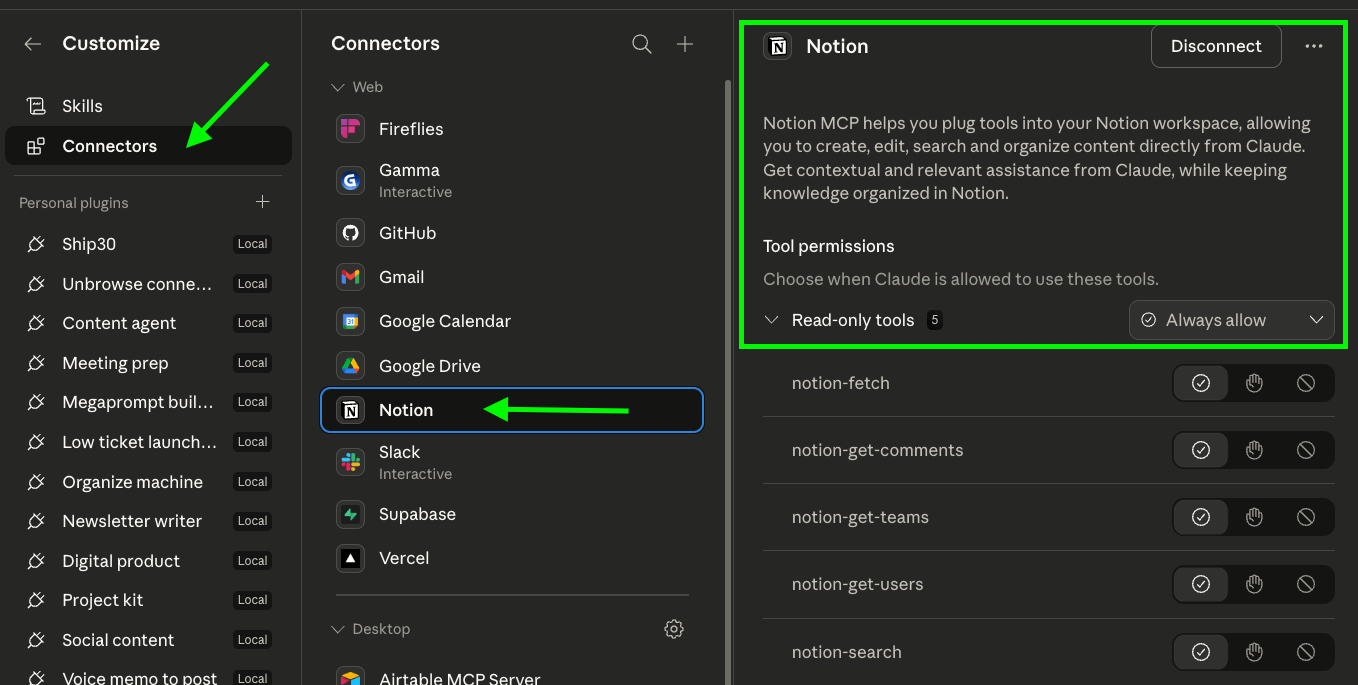
Find the Tool Permissions section of the Connector settings
Configure your desired permissions for each action the AI can take in Notion:

Checkbubble: Always allow
Hand: Needs approval
Stop: Blocked


Verify it worked
Back in Cowork settings, the Notion connector should show a blue toggle or say "Connected."
What’s next?

Boom!
Clarity.
Anytime you feel stressed or need to think through a problem…
Just ask your AI coworker 🙂